
Automatic update over the air
INFINITY devices are automatically updated over the air (OTA) by Insiders. Therefore, you do not need to do anything, just use the devices as usual.
While using INFINITY devices for a sport session, the OTA update process will start automatically if needed.
Then, the devices will have the latest version for the next time.
For your information, find below how the OTA update is automatically launched:
- Before your sport session, turn on the device by pressing the power button once
- The device starts and the LED lights behave normally until they “turn in circle” in violet. You can start your sport session
Both LED lights,
and
, will be blinking green alternately when fully connected. You can start your sport session- While connected to 4G network, the device will communicate with the server to compare its firmware version to the last available one
- After the sport session, turn off the device by pressing the power button three consecutive times or plug it to the docking to charge it
- While the device is turning off, the latest version will be downloaded by the device if needed. LED lights will ????
Both LED lights,
and
, will be blinking white - The latest version will be installed while the device is plugged in to charge. This avoids eventual issues due to low battery
- During the download of the last version, LED lights will ????
both LED lights,
and
, will be blinking white - Once the new firmware is downloaded, LED lights will ????
theduring the update process
LED light will turn green and stay steady - Once the update is finished, the device will behave normally on the docking or LED lights will turn off
both LED lights will turn off
Note: if the device is not able to connect to the network; ????? , move the device to a location where it can get a better 4G network connection.
LED light is never blinking green
Manual update with the Updater tool
If the device is unable to update automatically over the air (OTA) due to a lack of mobile network connection, or OTA server down, etc., the update can be launched manually using the Updater tool.
- First download the Updater tool
- Extract all the content of the “updater.zip” file you downloaded previously
- Open the folder “update”
- Then double click on “Update.bat to run the Updater tool
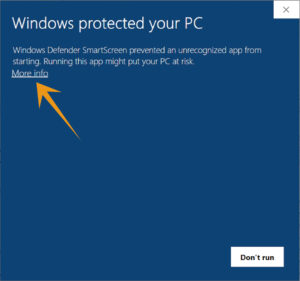
- Windows Security might display the following message
- Click on “More info”
- Then click on “Run anyway”
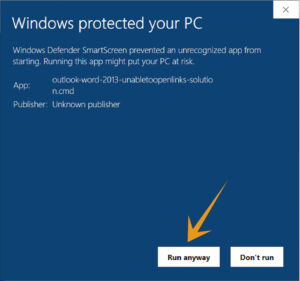
- This same Windows Security message might appear twice.
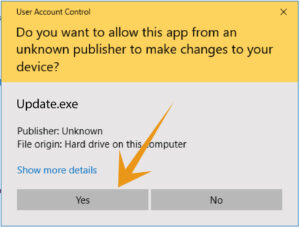
In this case, click again on “More info” and then on “Run anyway” - Then Windows might ask you if you want to allow this application, please click “Yes”
- Now the Updater tool is launched
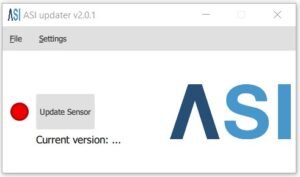
- Connect the device to your computer with the USB cable
- A pop-up at the bottom right of your screen will show the device is connected

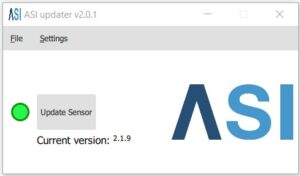
- On the Updater tool, the green dot confirms that the device is connected.
- Press the “Update Sensor” button
- While updating, a progress circle will be displayed
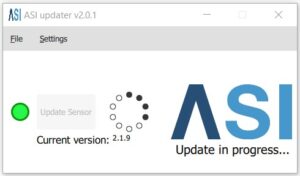
- Warning: do not unplug the device while the update is in progress, otherwise an error message will be displayed. In that case, you have to restart the update procedure

- When the update is completed, a pop-up confirmation will be displayed

- Once the device is updated, you can close the Updater tool, unplug the device
- Restart your INFINITY device to complete the firmware update
- You can now start using your INFINITY
/!\ In case of error, please close the updater tool and relaunch it. If the issue remains, please contact the support.
