Comment mettre à jour un INFINITY

Mise à jour automatique sans fil OTA

Plus de détails prochainement.

INFINITY devices are automatically updated over the air (OTA) by Insiders. Therefore, you do not need to do anything, just use the devices as usual.

While using INFINITY devices for a sport session, the OTA update process will start automatically if needed.

Then, the devices will have the latest version for the next time.

Pour votre information, découvrez ci-dessous comment la mise à jour OTA se lance automatiquement :

  • Before your sport session, turn on the device by pressing the power button once
  • The device starts and the LED lights behave normally until they “turn in circle” in violet. You can start your sport session
  • Les deux voyants LED, Info LED light et Network LED light, clignoteront alternativement en vert lorsqu'ils seront complètement connectés. Vous pouvez commencer votre séance de sport
  • While connected to 4G network, the device will communicate with the server to compare its firmware version to the last available one
  • After the sport session, turn off the device by pressing the power button three consecutive times or plug it to the docking to charge it
  • While the device is turning off, the latest version will be downloaded by the device if needed. LED lights will ???? Les deux voyants LED, Network LED light et Info LED light, clignoteront en blanc
  • The latest version will be installed while the device is plugged in to charge. This avoids eventual issues due to low battery
  • During the download of the last version, LED lights will ???? both LED lights, Network LED light et Info LED light, clignoteront en blanc
  • Once the new firmware is downloaded, LED lights will ???? the Info LED light LED light will turn green and stay steady during the update process
  • Once the update is finished, the device will behave normally on the docking or LED lights will turn off both LED lights will turn off

Note: if the device is not able to connect to the network; ????? Network LED light LED light is never blinking green, move the device to a location where it can get a better 4G network connection.

Mettre à jour manuellement avec l'outil Updater

Plus de détails prochainement.

If the device is unable to update automatically over the air (OTA) due to a lack of mobile network connection, or OTA server down, etc., the update can be launched manually using the Mise à Jour .

  1. Téléchargez tout d'abord l'outil de Mise à Jour .
  2. Extraire tout le contenu du fichier « updater.zip » que vous avez téléchargé précédemment
  3. Ouvrez le dossier « update »
  4. Double-cliquez ensuite sur « update.bat » pour exécuter l'outil Updater
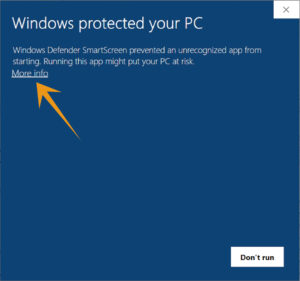
  5. La sécurité de Windows peut afficher les messages suivants
  6. Cliquez sur « Plus d'infos »
  7. Cliquez ensuite sur « Exécuter quand même »
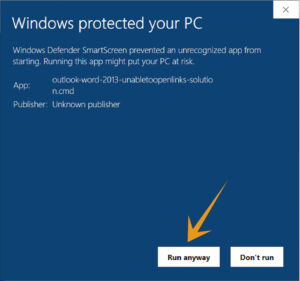
  8. Ce même message de sécurité Windows peut apparaître deux fois.
    Dans ce cas, cliquez à nouveau sur « Plus d'infos » puis sur « Exécuter quand même »
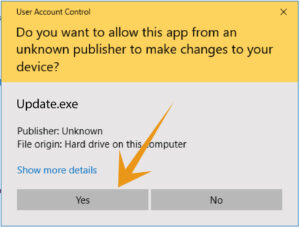
  9. Windows peut vous demander si vous souhaitez autoriser cette application, veuillez cliquer sur « Oui »
  10. Maintenant, l'outil de mise à jour démarre
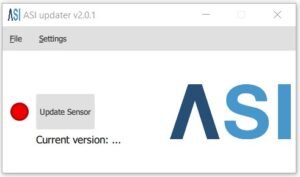
  11. Connect the device to your computer with the USB cable
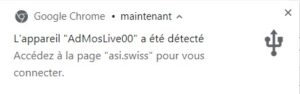
  12. A pop-up at the bottom right of your screen will show the device is connected
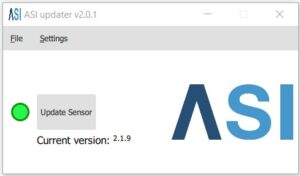
  13. On the Updater tool, the green dot confirms that the device is connected.
  14. Appuyez sur le bouton « Mettre à jour le capteur »
  15. Pendant la mise à jour, un cercle de progression s'affichera
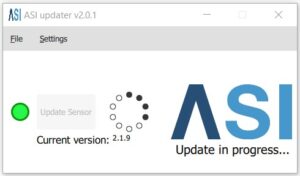
  16. Warning: do not unplug the device while the update is in progress, otherwise an error message will be displayed. In that case, you have to restart the update procedure
  17. Une fois la mise à jour terminée, une fenêtre contextuelle de confirmation s'affiche
  18. Once the device is updated, you can close the Updater tool, unplug the device
  19. Restart your INFINITY device pour terminer la mise à jour du firmware
  20. You can now start using your INFINITY

/!\ En cas d'erreur, veuillez fermer l'outil de mise à jour et le relancer. Si le problème persiste, veuillez contacter le support.

Retour en haut