


Support : Generate docking’s data backup – INSPIRIT

Note: this procedure works with version 3.9 and higher. If it is not the case yet, please update it with this procedure: docking update. This will erase the docking’s content so be sure to contact support before performing the procedure.

  1. Power down the docking station.
  2. Make sure there is no sensor connected.
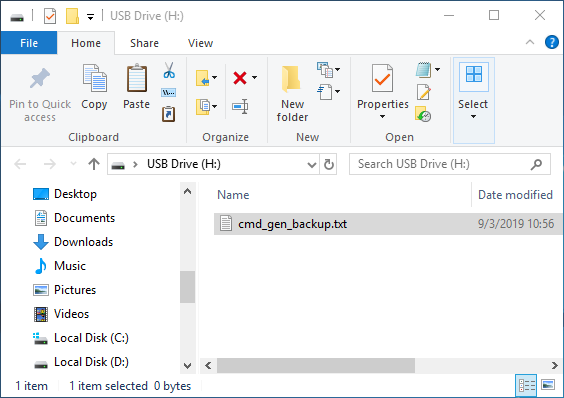
  3. Download the .txt file with this link: click here for download. Then place it in the USB key.
  1. Connect the provided* USB key on the docking before powering it up.
    *not using the provided USB key might make the update fail.

  2. Power up the docking station.

  3. Wait until the docking boots up (take around 30 seconds)

  4. The docking will automatically start to generate a backup of the docking.
Copying the docking’s content into the USB
  1. The following screen will appear to confirm all datas have been saved on the provided USB key.
backup is copied into the USB
  1. Turn off the docking station 
  2. To upload the missing session(s), you have two options

    The Safe Process by Insiders Support or the Quick Self Process

A. Safe Process is done by Insiders Support Team members

A1. Send the file to support@insiders.live, and add the date and time of the missing session(s)

A2. We will check the data to find the missing session(s), then the data will be uploaded
We will contact you as soon as the missing session(s) is(are) uploaded

B. Quick Self Process is done by yourself

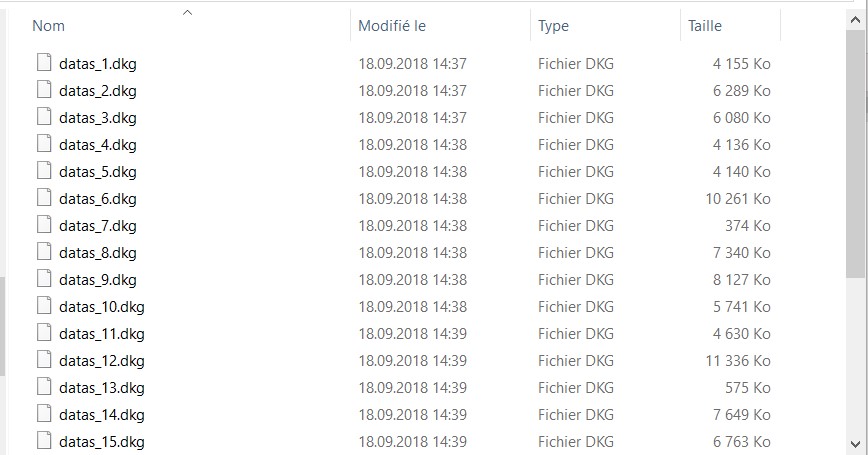
B1. Extract the content of the ZIP file. This will create a new folder containing DKG files
Your missing session is in one of these DKG files
B2. Open your favorite Data Scientists management platform and log in

B3. Follow your Data Scientists platform instructions to upload the docking DKG file(s)

B4. If you are unable to upload the data to your Data Scientists platform, please contact their support directly

Scroll to Top